The ConnectWise Month-End Microsoft Billing Checklist: 15 Checks Before Invoicing

A ConnectWise month-end Microsoft billing review should clear exceptions, not rebuild every invoice line by hand. Before Agreement Invoicing, prove that the Microsoft source period is current, each Company, Product, Agreement and Addition points to the right destination, and the configured billing rule explains the quantity, price and dates. Every unresolved difference then needs an owner, evidence and a retest before the invoice batch is released. That is the practical job of ConnectWise billing reconciliation at month end.
ConnectWise Manage remains the invoicing system of record. Microsoft source data informs the billing decision, while the Agreement records entering invoicing should contain the reviewed result. The 15 checks below are Sync 365’s recommended review sequence, not an official ConnectWise checklist.
Key takeaways
- Start with source freshness and sync health. A stale extract can make correct Agreement Additions look wrong.
- Compare the full chain: source field → configured billing rule → expected result → actual ConnectWise record → variance.
- A raw assigned-user count is not interchangeable with every Microsoft invoice line. Charge type, billable quantity, term, billing frequency and dates all affect the review.
- Treat missing and duplicate Additions as exceptions to investigate, not immediate instructions to create or replay records.
- Keep the batch on hold until every blocker is corrected or formally accepted under your MSP’s policy.
Decide when the invoice batch must be held
Set the hold rule before anyone begins fixing individual lines. Otherwise, one person may consider a batch ready because the quantities match while another is still waiting for a failed sync, a pricing decision or a date correction.
Set the source period and cut-off
There is no universal month-end cut-off for every MSP. The right point depends on when your source information is available, how you bill customers and which period the ConnectWise batch covers.
Microsoft distinguishes the billing period, subscription term, billing plan and charge period. It also states that invoices and reconciliation information for a billing period become available in the following month. Record the source file, API result or sync snapshot used for the close, its timestamp, the customer and subscription coverage expected, and what your team considers complete. See Microsoft’s explanation of billing periods, plans and charge periods.
Define hold, review and ready states
Use a small status model that your billing team can apply consistently. For example:
| State | Meaning | Invoice action |
|---|---|---|
| Blocker | The source, mapping or invoice-driving record is not trustworthy | Hold |
| Review | The difference is understood but needs a commercial or configuration decision | Hold unless your written policy permits release |
| Accepted | An authorised owner has accepted the result and recorded why | May proceed |
| Ready | All blockers are cleared or formally accepted, and corrected records have passed retest | Release |
These states and any severity thresholds are illustrative controls. They are not native, universal ConnectWise rules. Adapt them to your own close policy, but do not let an unresolved exception disappear because the cut-off arrived.
The 15 checks at a glance
Use this index to identify the evidence for each check and the meaning of a discrepancy. The detailed sections explain the action and retest.
| Check | What to verify | Evidence | A discrepancy means |
|---|---|---|---|
| 1 | Source period is complete | Reconciliation file or dated source snapshot | Downstream comparisons are not yet trustworthy |
| 2 | Import or sync completed | Connector result, timestamp and source identifier | The destination state may be partial or unknown |
| 3 | Tenant reaches the right Company | Tenant ID, mapping record and ConnectWise Company | Billing may land against the wrong customer |
| 4 | SKU reaches the right Product | Product/SKU ID and configured Product mapping | A mapping fault may look like a quantity fault |
| 5 | Active Agreement and billing setup | ConnectWise Agreement and local configuration | The line has no trusted invoice destination |
| 6 | Expected Addition exists | Source rule, intended Agreement and Addition search | A dependency, exclusion or update needs investigation |
| 7 | No conflicting existing Addition | Agreement records, connector log and audit evidence | Another write could affect current or historic billing |
| 8 | Quantity follows the billable rule | Source field, configured rule and actual Addition | The variance is either intentional logic or a missed update |
| 9 | Price inputs agree where in scope | Approved pricing rule and invoice-driving values | A commercial or configuration decision is unresolved |
| 10 | Effective Date is correct | Source event, configured date rule and Addition | The wrong period or proration treatment may result |
| 11 | End treatment is correct | Source event, rule and current Addition state | Cancellation, credit or quantity treatment is unresolved |
| 12 | Charge context and proration agree | Microsoft charge fields and Agreement result | A count alone cannot explain the invoice treatment |
| 13 | Related recurring lines align | Shared driver, each line's rule and actual quantities | An exclusion or stale related line requires investigation |
| 14 | Exception has owner and evidence | Exception record, decision, reason and retest | The variance is not controlled and remains on Hold |
| 15 | Correction reached invoice readiness | Rerun result and the intended invoice period | The batch is not ready for release |
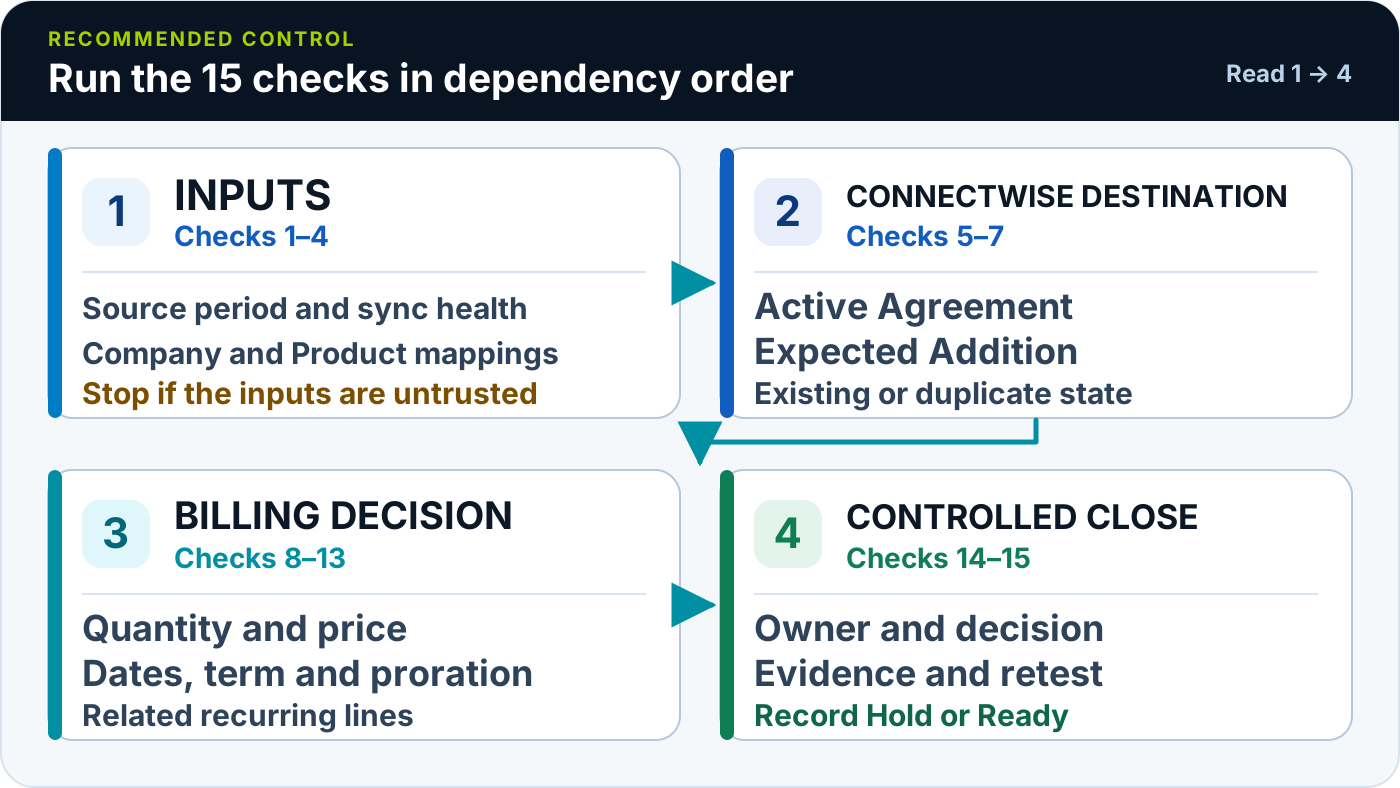
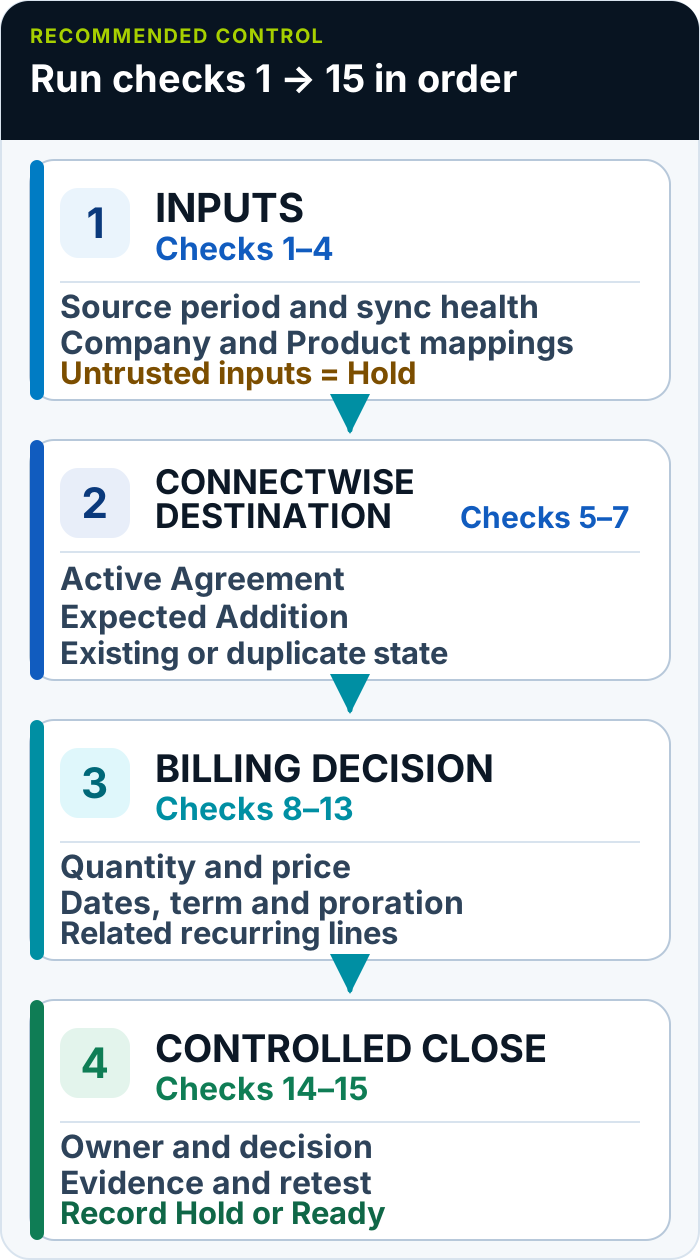
The dependency order matters: prove the inputs before the destination, the destination before the billing decision, and the billing decision before release.
A. Prove the Microsoft billing inputs
Checks 1–4 are dependencies. Do not trust a downstream quantity or date comparison until the input period, transfer and mappings are sound.
Check 1: Is the source period complete and current?
Compare the period on the Microsoft reconciliation source with the period being prepared in ConnectWise. Record:
- billing period and charge period;
- extraction, API or sync timestamp;
- expected customers, subscriptions and SKUs;
- received customers, subscriptions and SKUs; and
- any file, connector or API status that affects completeness.
Stop if a completed PSA period is being compared with a partial Microsoft period. That produces false missing-line and quantity exceptions before the team has reached the billing rules.
Microsoft’s reconciliation file guidance separates legacy licence and usage files, new-commerce invoice reconciliation, and new-commerce daily-rated Azure usage. Name the exact source used rather than writing “Microsoft data” in the evidence column.
Check 2: Did the source, API, import or sync complete without errors?
Read your connector, import or sync result before editing Agreement records. Retain the timestamped result, the failing source identifier and the error detail, then search the intended Agreement for any supported record that the attempt may already have created or changed.
If the result is failed, partial or unknown—or the source identifier cannot be traced—the discrepancy is an untrusted destination state. Keep the item on Hold. Follow that connector’s documented recovery path only after checking its current state; do not blindly replay the line or create an Addition by hand. This is a recommended precaution because recovery behaviour depends on the connector and configuration, not a native universal ConnectWise rule.
Check 3: Is the Microsoft customer or tenant mapped to the right ConnectWise Company?
Compare the stable Microsoft customer or tenant identifier with the intended ConnectWise Company. Names help a person recognise the account, but they are weak matching keys when two companies have similar names or a customer has rebranded.
Use the source tenant record, your connector’s configured mapping and the current ConnectWise Company record as the evidence chain. If the stable source identifier points to another Company—or to no active Company—the discrepancy means later Product, Agreement and Addition checks would be performed against the wrong destination. Hold the item and correct the configured mapping before continuing.
Flag any of these conditions:
- no Company mapping;
- more than one plausible Company;
- an inactive destination;
- the correct tenant mapped to the wrong customer; or
- a stable identifier that conflicts with the displayed name.
The Company mapping establishes where all later Product, Agreement and Addition decisions land. If it is wrong, a correct quantity can still reach the wrong customer invoice.
Check 4: Is the Microsoft SKU or source item mapped to the right ConnectWise Product?
Microsoft’s new-commerce invoice reconciliation fields include product and SKU identifiers and descriptions, alongside subscription and charge data. Compare those stable values with the Product intended for the customer’s Agreement.
Use the Microsoft source row, your configured mapping and the active ConnectWise Product record as evidence. If a stable Product or SKU ID has no destination, points to an inactive Product or reaches the wrong Product, the discrepancy is a mapping defect rather than proof of a quantity error. Correct the mapping and rerun the comparison.
Separate an unmapped or inactive Product from a real quantity difference. Check:
- Product ID and SKU ID where available;
- source and PSA descriptions;
- current mapping status;
- whether the ConnectWise Product is active; and
- whether free-form names or classifications have split one intended group into several values.
Do not repair a Product mapping by adjusting the Addition quantity. Fix the mapping, rerun the comparison and then inspect the resulting Addition.
B. Prove the ConnectWise destination
Once the source and top-level mappings are trusted, verify the records that will drive customer billing.
Check 5: Is the correct active Agreement and billing configuration selected?
Confirm the ConnectWise Company, active Agreement, intended Product, billing period and any relevant currency or customer-specific setting. The exact labels and behaviour depend on your ConnectWise configuration and Agreement Type.
Use the configured destination rule and the current Company, Agreement and Product records as evidence. If the rule cannot identify one active destination for the invoice period, the discrepancy means the line has no trusted place to land. Keep it on Hold until the destination is corrected and retested.
Ask a concrete question: if this source line passes its configured billing rule, which Agreement and Addition should change? If the team cannot name that destination, the item is not ready for quantity review.
Treat an expired Agreement, an unintended renewal Agreement or a copied Agreement with old settings as a blocker. Confirm menu labels, invoice periods, Agreement Types and proration behaviour in your own ConnectWise configuration.
Check 6: Does the expected Agreement Addition exist?
Establish whether the source item and configured rule should create or update an Agreement Addition. Then search the intended Agreement using the Product, source or subscription identifier, and effective period.
If the Addition is missing, use the source record, configured rule, mapping record, intended Agreement and connector result to check the dependencies before creating anything:
- whether the Product is active and mapped;
- whether the Agreement is active and selected by the rule;
- whether the source and Addition dates overlap the invoice period;
- whether the sync reported an error or rejection; and
- whether an exclusion, minimum, filter or split means no Addition should exist.
Record “missing Addition” as the exception. Manual creation is a possible correction only after the cause and current state are known. Creating a line earlier can produce a conflicting billing record, depending on the connector and configuration. Inspect the existing Agreement records and follow the connector’s documented recovery procedure before making the change.
Check 7: Is there a duplicate Addition or replayed update?
Search the intended Agreement for the same customer, Product, source or subscription identifier and effective period. Use the existing Agreement records, your connector log and available audit evidence to establish what already happened before replaying an update.
If two records could drive the same charge, or the prior write cannot be established, the discrepancy is a blocker: another write could affect current or historical billing. Assign it to the PSA or integration owner. The recommended control is to prove the current state before retrying; exact recovery behaviour depends on your connector and configuration.
C. Prove the billing decision
A Microsoft assigned-user snapshot is not a substitute for invoice reconciliation. The source may contain quantity, billable quantity, charge type, term, billing frequency, charge dates, credits and other transaction context. Your MSP’s resale rule then determines what should reach ConnectWise.
Check 8: Does quantity match the configured billable rule?
Write the comparison as a chain:
source field → configured billing rule → expected quantity → actual Addition quantity or quantity to bill → variance
The relevant source might be Quantity, BillableQuantity, an assigned-licence count, an active managed-user count or another supported value. Name it. Then record the rule that turns it into the customer quantity, including any:
- exclusions or filters;
- minimum licence quantity rule;
- customer, department or site split;
- subscription-level treatment;
- customer-specific override; or
- calculated recurring logic.
For example, a raw source quantity of 48 and an Addition quantity of 50 may be correct if the customer has an approved minimum of 50. Without the rule, the difference looks like an error. With the rule, the expected and actual results can be compared properly.
This distinction is central to Microsoft 365 licence reconciliation: the source count matters, but the configured billing decision determines the supported PSA quantity.
Check 9: Are unit cost, sell price, markup and extended amount correct where in scope?
Quantity can match while price is wrong. Where your workflow controls price, compare:
- the source unit cost or price for the relevant customer, market, term and period;
- the approved sell-price or markup rule;
- the ConnectWise Addition unit price;
- the extended amount that follows from quantity and price; and
- any customer-specific fixed price, discount or override.
Route commercial-policy questions to the account or commercial owner. A billing administrator should not silently overwrite an intentional contract decision simply because it differs from a standard price.
Use the approved customer price rule or contract decision and the invoice-driving values in your own ConnectWise Agreement configuration as evidence. If the source cost, approved sell rule and actual result do not reconcile, the discrepancy is an unresolved commercial or configuration decision. Keep it in review until the authorised owner resolves it and the extended result is retested.
Check 10: Is the Effective Date correct?
Compare the source charge start date or licence event date with the configured billing rule and the Addition Effective Date. The date can decide which invoice period receives the quantity and whether the Agreement configuration applies proration.
Retain the source event, the rule applied and the chosen date. If the dates differ intentionally, record the reason, such as a customer contract that starts billing on a later approved date.
Do not assume that every integration or Agreement Type handles a mid-cycle change in the same way. Use the source event, the configured date rule and the resulting invoice period as evidence. If they do not agree, the discrepancy may place the charge in the wrong period or apply unintended proration. Confirm the behaviour in your own ConnectWise configuration and retest after correction.
Check 11: Is the Cancelled Date or end treatment correct?
Compare the source charge end, cancellation or subscription dates with the Addition Cancelled Date or the alternative end treatment configured for that workflow.
First classify the event. A cancellation, credit, renewal, suspension and quantity-only reduction are not the same billing decision. Then check whether the Addition remains active for the intended period and whether any related recurring lines should end with it.
If the integration uses a status or quantity update rather than a Cancelled Date, document that configured behaviour. Use the source event, configured end rule and current Addition state as evidence. If they do not agree, the discrepancy means the cancellation, credit, renewal or quantity treatment is unresolved. The control is to prove the expected end treatment, not to force every workflow into one field.
Check 12: Do proration, charge type, term and billing frequency agree?
Review the transaction context together rather than reading one field in isolation. Depending on the source and workflow, that may include:
ChargeType;ChargeStartDateandChargeEndDate;TermAndBillingCycle;BillingFrequency;QuantityandBillableQuantity; and- effective unit price.
Microsoft documents these fields separately because they answer different questions. A monthly billing plan does not necessarily mean a monthly commitment, and the charge period is not another name for the subscription term. The Microsoft NCE term and billing-cycle guide provides broader context; for this checklist, the task is to confirm that the source context, customer rule and Agreement treatment agree.
Use the Microsoft reconciliation row, the configured customer-billing rule and the invoice-ready Agreement result as evidence. If those three do not agree, the discrepancy means a raw count cannot explain the intended charge. Hold the item while the owner identifies whether charge type, dates, term, frequency or local proration behaviour explains the variance.
Do not use a universal NCE or ConnectWise proration formula. Confirm the intended charge and the actual result for the specific Agreement, period and configuration.
Check 13: Are related managed-user and custom recurring lines aligned?
The Microsoft licence line can be correct while the rest of the recurring invoice is stale. If one Microsoft or managed-user count drives support, backup, antivirus or EDR, web filtering, security or another recurring service, compare every linked line with the same configured driver.
Use the dated source or managed-user count, each Product’s configured rule and the actual related Agreement Additions as evidence. If one line differs, the discrepancy means either an approved exclusion or minimum explains it, or that related line is stale. Record which rule applies; if none does, correct and retest the affected line before release.
Record minimums, exclusions, filters, splits and customer-specific logic for each related Product. One count may legitimately produce different quantities: 120 active managed users, a 125-seat contracted support minimum and 118 backup users after approved exclusions, for example. Those figures are illustrative; the rule must explain each result.
Pay particular attention to lifecycle events. A reactivated-user billing exception may leave the Microsoft commitment unchanged while support and security services should restart.
Sync 365 supports one Microsoft or managed-user count driving several related recurring PSA lines where configured. In one customer-specific Cleva Group workflow, roughly 25 of 30 recurring lines were controlled through Sync 365. That is evidence of a complex configured use case, not a benchmark for other MSPs.
D. Prove the close
The last two checks turn a list of differences into a controlled invoice decision.
Check 14: Does every unresolved exception have an owner, decision, evidence and retest?
A variance is not controlled merely because it appears in a report. Give it:
- a severity and invoice impact;
- a named owner;
- a due date or cut-off;
- a decision: fix, accept, defer or exclude;
- a reason and evidence reference; and
- a retest result.
Illustrative ownership might route source failures to licensing or the integration owner, Company/Product/Agreement mappings to the PSA administrator, customer-scope questions to service operations, and contract pricing to the account owner. Your own responsibility matrix may differ. The broader guide to billing reconciliation for finance teams explains how finance, licensing, operations and commercial owners can work from the same evidence.
The billing team should still own the release decision. If an exception cannot be resolved by cut-off, the exception record must show whether the batch remains on Hold or an authorised owner accepted the result under the MSP’s policy. A missing owner, reason, evidence reference or passed retest means the variance is not controlled. This is a recommended human control—not a native ConnectWise queue—and it is also the evidence a finance or account team needs when a customer questions an invoice.
Check 15: Do corrected records appear in the invoice-ready workflow?
Rerun the comparison after the correction. Use the rerun result and your ConnectWise invoice-ready view as evidence, then confirm that the intended Company, Agreement, Addition, Product, quantity, price and dates appear as expected for the invoice period. ConnectWise describes recurring charges and invoice creation as part of its PSA billing capability, but exact screens and results depend on your version, Agreement Type and configuration.
Do not release a batch because someone changed the mapping or edited the Addition. Release it because the retest proved that the corrected record reached the workflow that will create the invoice.
Use this final decision:
- all blockers are cleared or formally accepted under policy;
- review items have named decisions and evidence;
- corrected items passed retest;
- the expected Agreement records appear in the correct invoice period; and
- the batch status is Ready.
Exact screens and results depend on the ConnectWise version, Agreement Type and configuration. Confirm them in your environment. ConnectWise creates the final invoice.
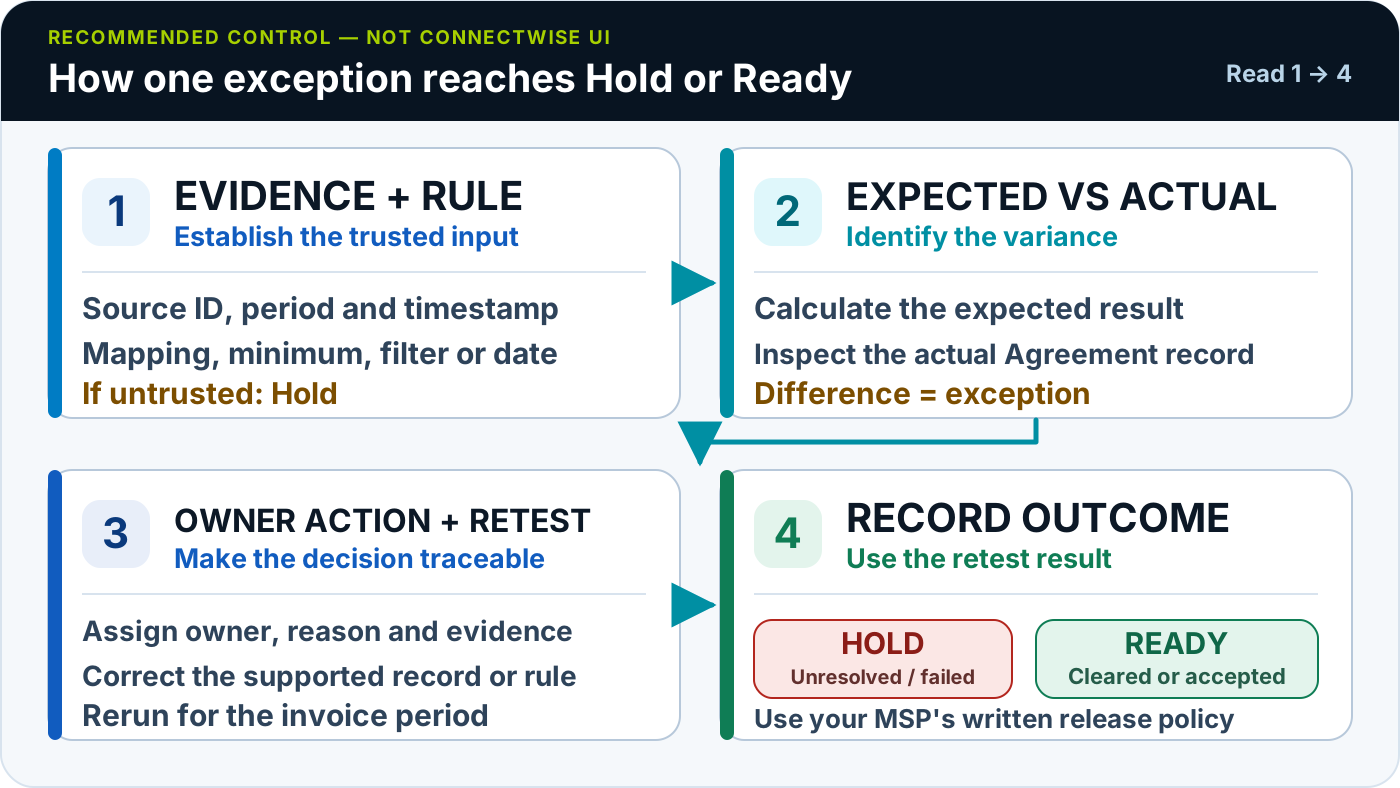
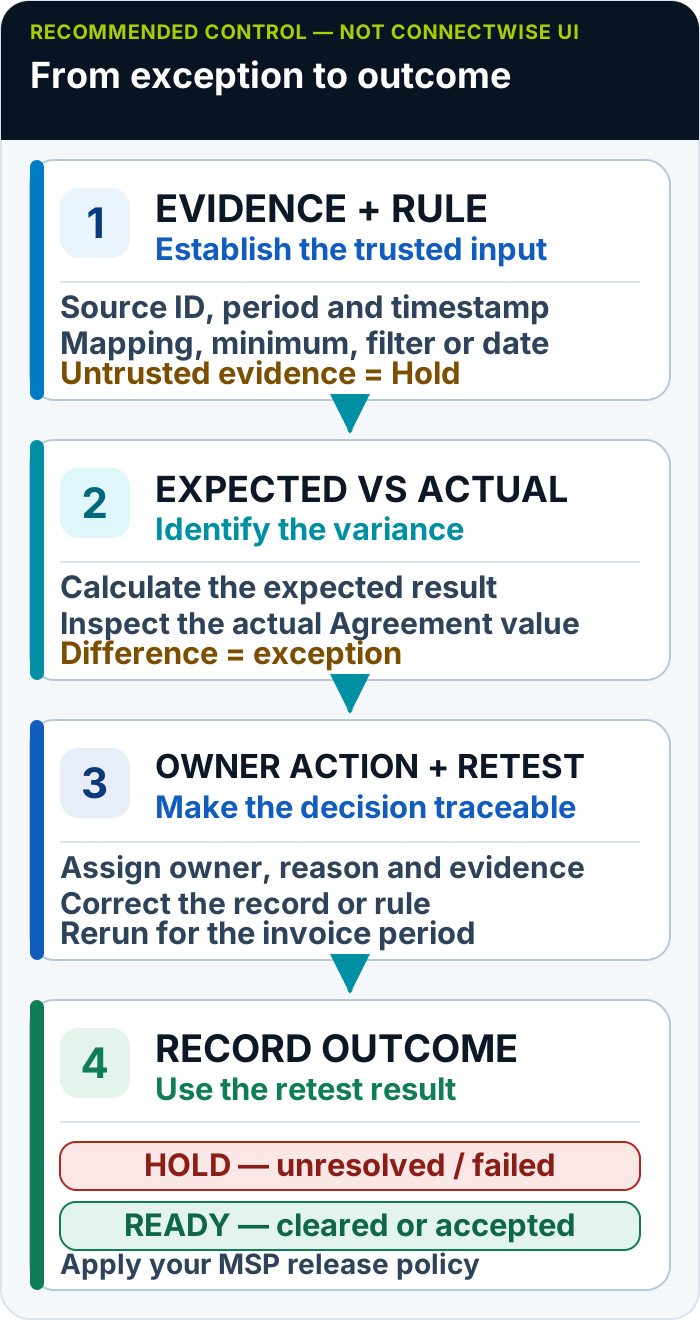
Every exception follows the same control loop: retain the source evidence, compare expected with actual, assign an owner, correct the supported record, retest it, then record Hold or Ready.
Copyable ConnectWise billing exception-control table
Copy these headings into a spreadsheet, PSA report or ticket queue. Keep one row per exception so ownership and retest status remain visible. On a narrow screen, scroll the table horizontally to retain the full row context.
| Check number | Customer / tenant | ConnectWise Company | Agreement / Addition | Source evidence | Configured rule | Expected result | Actual PSA result | Variance | Severity | Owner | Decision and reason | Evidence reference | Retest status | Invoice-release status |
|---|---|---|---|---|---|---|---|---|---|---|---|---|---|---|
| 1–15 | Source entity | PSA destination | Invoice-driving record | Source, timestamp and stable ID | Mapping, minimum, exclusion, filter, split, price or date rule | Expected quantity, price, date or destination | Current ConnectWise value | Difference needing a decision | Blocker / review / accepted | Named role or person | Fix / accept / defer / exclude, with reason | Audit trail, ticket, source record or log | Not tested / failed / passed | Hold / ready |
This is a recommended control template, not an official ConnectWise form.
Two worked exception examples
Example 1: Quantity and Effective Date mismatch
The following customer, dates and quantities are illustrative.
A Microsoft reconciliation row shows that Customer A’s Business Premium subscription moved from 42 to 47 billable seats with a charge start date of 18 August. The configured rule has no minimum or exclusion, so the expected Agreement Addition is quantity 47 with an Effective Date of 18 August. ConnectWise still shows quantity 42 with an Effective Date of 1 August.
The control record should read:
Microsoft source row → no-adjustment billing rule → expected quantity 47 from 18 August → actual quantity 42 from 1 August → billing owner investigates → mapping or sync correction → comparison rerun → invoice-release decision
The billing owner should not calculate a universal prorated amount. They should confirm how that Agreement handles proration, correct the supported record, and retest the invoice period. If the result then shows the intended quantity and date treatment, the exception can move from Blocker to Ready. If not, the batch stays on Hold.
Example 2: One user count, several recurring lines
This example is also illustrative. An MSP’s configured managed-user rule returns 120 billable users. That count is intended to drive four Agreement Additions: managed support, backup, security and web filtering. Support, security and filtering show 120; backup still shows 117.
The Microsoft licence line is not the exception. The backup line is. The owner checks whether three users are excluded from backup under an approved rule, whether a filter omitted them, or whether that single Addition failed to update. If no exclusion explains the difference, the owner corrects the mapping or sync state and retests all four lines.
This one-to-many check matters because customers often read the quantities together. A Microsoft or support count of 120 beside a stale backup count of 117 can trigger an invoice query even if three of the four lines are right. The ability to drive several related recurring lines depends on configured billing logic.
What an exception-led close changes
The checklist can run manually, but its structure also shows what a reconciliation layer needs to automate. It must pull current source data, apply the MSP’s mappings and billing rules, calculate the expected result, compare it with supported PSA records, and leave a visible difference when the two do not agree.
Sync 365 helps MSPs automate Microsoft 365 licence billing reconciliation. It applies configured rules, compares the results with supported PSA billing records, and updates supported records according to the MSP’s configured sync or approval controls. Microsoft 365 licence updates can sync automatically where configured; other workflows can use review or approval controls.
The How Sync 365 works page shows how source data, billing rules and PSA updates fit together. For the broader commercial use case, see the ConnectWise billing reconciliation workflow. ConnectWise remains the invoicing system of record.
Customer-specific proof: Cleva Group reported that monthly invoice queries fell from 30+ to 1–2 after improving Microsoft and recurring-billing alignment with Sync 365. This is Cleva Group’s result, not an average or a result other MSPs should expect. Read how Cleva Group reduced invoice queries.
Frequently asked questions
What should be checked before ConnectWise Agreement Invoicing?
Check source freshness and sync health first. Then verify the Microsoft customer and SKU mappings, active Agreement, expected Agreement Addition, duplicates, configured billable quantity, price where relevant, Effective Date, Cancelled Date, proration and related recurring lines. Every unresolved exception should have an owner, decision, evidence and retest. Release the batch only after corrected records appear in the intended invoice period.
Which ConnectWise Agreement Addition fields should billing teams review?
Review the fields that drive billing in your configuration. Depending on the Agreement Type and integration, these may include Product and description, quantity or quantity to bill, unit cost or price where used, extended price, Effective Date, Cancelled Date, billable or tax treatment where relevant, and proration values. Use your configured Agreement, source record and invoice-ready result as evidence; a value that cannot be explained by the source and rule remains an exception.
Why can a Microsoft quantity differ from the ConnectWise quantity?
The source may be stale, a sync may have failed, or the customer, Product or Agreement mapping may be wrong. The difference may also be intentional: Microsoft BillableQuantity can differ from a raw count, while the MSP may apply minimums, exclusions, filters, splits or subscription-level rules. Term, billing frequency and dates can also affect treatment. Compare the source, rule, expected result and actual Addition before calling the variance an error.
What causes missing or duplicate Agreement Additions?
Missing Additions can follow an inactive or unmapped Product, wrong Agreement destination, date mismatch, exclusion, or sync failure. In some integration workflows, manual creation or replay before the current state is understood can produce a conflicting record. Inspect current Agreement records, logs and connector state, then follow the connector’s documented recovery procedure before creating or retrying anything. Exact causes and recovery steps depend on the integration and ConnectWise configuration.
Does Sync 365 create the ConnectWise invoice?
No. Sync 365 updates supported ConnectWise Manage Agreement records according to the MSP’s configuration. ConnectWise remains the invoicing system of record and creates the final invoice. The month-end control should therefore verify both the supported record update and the resulting invoice-ready workflow in ConnectWise.
Does every Sync 365 licence update require approval?
No. Microsoft 365 licence changes can sync automatically where configured. Other workflows can use configured review, approval or auto-approval controls. The appropriate path depends on the source, billing rule and MSP configuration. The important control is that the rules are explicit, exceptions remain visible and the resulting PSA records can be retested before invoice release.
Sources
- Microsoft Learn: Use reconciliation files, Microsoft, accessed 5 August 2026.
- Microsoft Learn: New commerce invoice reconciliation, Microsoft, accessed 5 August 2026.
- Microsoft Learn: Common billing scenarios for one-time and recurring purchases, Microsoft, accessed 5 August 2026.
- ConnectWise: PSA billing, ConnectWise, accessed 5 August 2026.
- Sync 365: How it works, Sync 365, accessed 5 August 2026.
- Sync 365: ConnectWise Manage billing reconciliation, Sync 365, accessed 5 August 2026.
- Sync 365: Cleva Group custom billing automation case study, Sync 365, accessed 5 August 2026.
- Sync 365: Cleva Group invoice query reduction case study, Sync 365, accessed 5 August 2026.
Run the checklist against a real exception
Bring one Microsoft-to-ConnectWise exception you currently resolve at month end. See how Sync 365 applies configured billing rules, surfaces differences and updates supported Agreement records while ConnectWise remains the invoicing system of record.