
Automated licence mapping
Automated Microsoft 365 licence mapping for MSPs
Configure reusable defaults for each Microsoft licence and commitment term, choose the matching PSA product, service or item, select the billing destination for each company and filter group, then set the approval mode for each company.

New licence mappings should not force your team to repeat the same PSA setup for every customer. Without defaults, each Microsoft licence and commitment term has to be matched to the right PSA product, service or item and customer billing destination before it can sync.
Automated licence mapping turns those decisions into reusable rules. Configure the licence defaults once, select the destination for each company and filter group, and set each company to approve, map and start syncing automatically or raise a pending mapping for review.
Set the Microsoft licence mapping once, then reuse it
The Licence Mapping workspace lets the MSP choose which Microsoft licence products should have a default. Each licence can carry separate mapping rules for the commitment and billing combinations Microsoft uses.
| Microsoft term | Default to configure | Why it matters |
|---|---|---|
| Monthly commitment | Monthly PSA billing item | Keeps flexible monthly licences aligned with the PSA record intended for monthly billing. |
| Annual commitment, billed monthly | Annual-monthly PSA billing item | Separates the annual commitment from the way the customer is charged each month. |
| Annual commitment, billed annually | Annual-annual PSA billing item | Routes annual upfront billing to the correct PSA billing item and destination. |
Create the Sync 365 billing profile during initial setup
When the MSP selects a PSA product, service or item during initial licence mapping, Sync 365 can create the corresponding billing profile at the same time. This keeps the Microsoft licence, commitment term and PSA billing-item decision together.
Set company and filter-group billing destinations
Select the default PSA billing destination for each company. Where a company uses licence filters, select the appropriate default destination for each filter group so every population follows the intended billing route.
Licence filters define who belongs in each population; automated licence mapping applies the configured defaults when a new mapping is created.
Set the approval mode for each company
The approval decision is made per company, so low-risk customer mappings can move automatically while companies that need another control point can remain in the pending queue.
How automated licence mapping works
Select the Microsoft licences that should receive reusable defaults.
Connect monthly and annual billing combinations to the right PSA billing items.
Choose the default billing destination for each company and filter group.
Choose automatic approval, mapping and sync, or pending approval for that company.
Why this saves MSP billing teams time
- Reduce repetitive product and billing-profile setup across customer tenants.
- Apply Microsoft commitment terms consistently instead of relying on memory.
- Shorten onboarding when new companies or Microsoft licence products are added.
- Choose between fully automatic mapping and a consistent manual approval step.
- Reduce the chance of unmapped licences reaching the next billing cutoff.
Automated licence mapping FAQ
Is this the same as a PSA integration?
No. The PSA integrations page explains which systems Sync 365 connects and where billing records live. Automated licence mapping defines the reusable rules that decide which PSA billing item and destination a Microsoft licence should use inside that connection.
Does every new mapping have to be approved manually?
No. Approval is configured per company. A company in automatic mode approves and starts syncing new mappings; a company in manual mode raises each new mapping as pending for review.
Does automated mapping replace the PSA?
No. The PSA remains the billing system of record. Sync 365 applies the configured Microsoft-to-PSA mapping logic and synchronises supported billing records.
Reusable licence defaults
Configure Microsoft-to-PSA mappings once
Choose the PSA billing item for each Microsoft licence term, then configure each company for automatic mapping and syncing or pending approval.
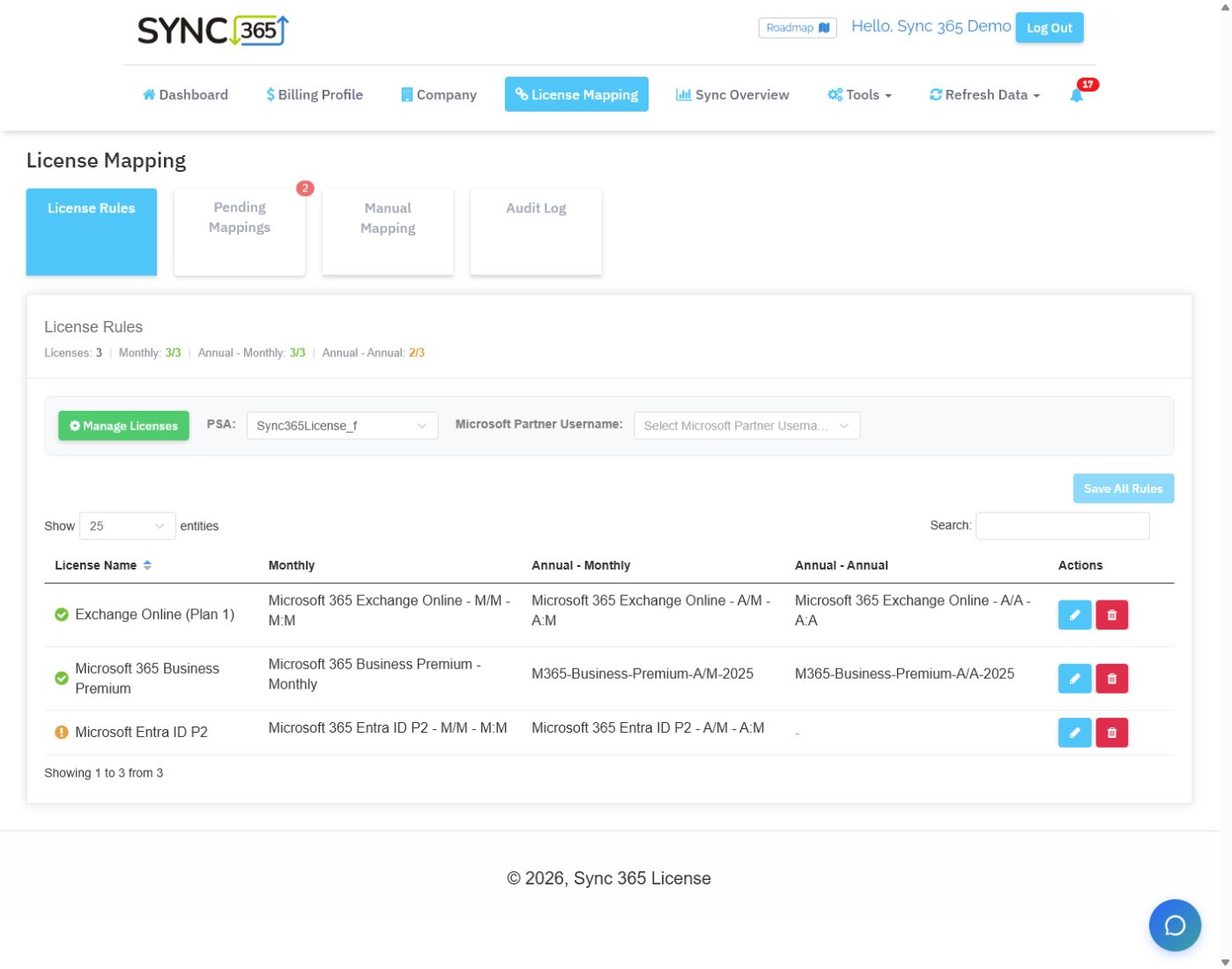
Mapping workflow demo
Stop rebuilding the same licence mappings for every customer
See how reusable licence defaults, filter-group destinations and company-level approval controls can shorten Microsoft licence onboarding.Bring your Microsoft licence terms, PSA products and customer agreement structure into a guided demo. We’ll show how Sync 365 can turn them into repeatable defaults while your PSA remains the billing system of record.